
Speed Up Your Ableton Workflow: How I Use Keyboard Maestro for Music Production Automation
Speed Up Your Ableton Workflow: How I Use Keyboard Maestro for Music Production Automation
Ever feel like you’re wasting time doing repetitive tasks in your DAW? As someone who works in both a professional studio and a home setup, I’m always on the hunt for ways to save time and keep my creative flow going. That’s where Keyboard Maestro comes in.
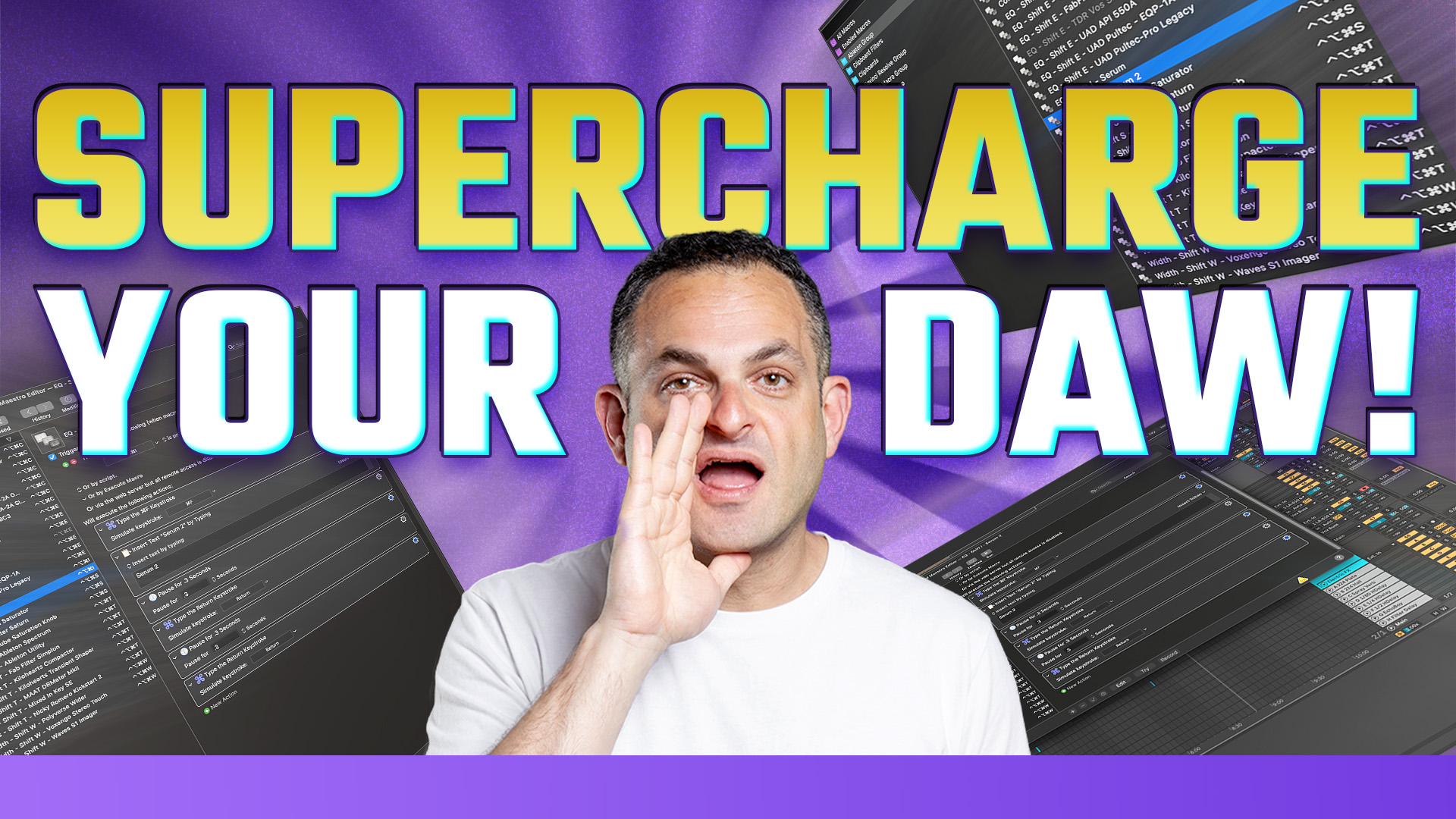
Keyboard Maestro is a powerful Mac automation tool that lets me trigger complex actions and macros—everything from loading my favorite plugins to launching multiple apps with just one button press. For example, in Ableton Live, I use a three-key combo to pull up a conflict window where I can instantly load any compressor, EQ, or tool I need. No more endless menu diving or memorizing a ton of shortcuts.
One game-changer: Keyboard Maestro’s sync feature. Since I split time between my home studio and my main production setup, I rely on my macros syncing perfectly across both computers. No more re-building shortcuts every time I switch locations—which is huge for staying productive.
I also learned that you can’t use symbolic links with Keyboard Maestro (I’ve got a separate video on that for syncing libraries/presets), but the built-in sync still covers all my workflow needs. Tech support even helped me set up smart key combos that don’t interfere with system shortcuts.
It’s not just for music, either. I automate my video workflow in DaVinci Resolve, triggering my recording suite with a single hotkey that opens, positions, and manages my apps automatically. These little time-savers add up fast and keep my focus on making music—not managing windows or menus. If you’re on Mac and want to work smarter in Ableton, give Keyboard Maestro a try. It’s easy once you get the hang of it, and it’s boosted my productivity big time. Got macro tips of your own? Let me know in the comments—or check out my full video for a detailed walkthrough!


